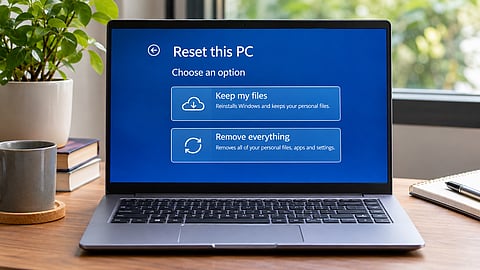

A factory reset reinstalls Windows and gives users the option to keep personal files or remove everything.
Photo Credit: AI-Generated

A factory reset can help resolve software-related performance issues.
It won't fix hardware limitations such as insufficient RAM, an older processor or a slow HDD.
Check for unnecessary startup apps, malware and storage issues before resetting Windows.
If your laptop has become slow over time, one of the common suggestions is to factory reset it. The idea is to remove unwanted applications, clear old settings and give Windows a fresh start. But will that actually make your laptop faster?
The answer depends on what is causing the slowdown. A reset can help with certain software-related problems, but it will not fix hardware limitations such as insufficient RAM, an older processor or a slow storage drive. Before you decide to reset your laptop, it is worth understanding what the process does and when it is likely to help.
A factory reset reinstalls Windows and removes applications and settings, depending on the option you select. It gives you a fresh Windows setup without having to manually uninstall applications or troubleshoot every software issue.
To find the reset option, open Settings and follow this path:
Windows 11: Settings, then System, then Recovery, and then Reset this PC
Windows 10: Settings, then Update & Security, then Recovery, and then Reset this PC
Windows offers two options under 'Reset this PC':
Keep my files: Reinstalls Windows while keeping personal files such as documents and photos. Installed applications and settings are removed.
Remove everything: Removes personal files, applications and settings before reinstalling Windows.
You can also choose between Cloud download and Local reinstall. Cloud download gets a fresh copy of Windows from Microsoft, while Local reinstall uses the files already available on your laptop.
A reset does not automatically mean better performance, though. That depends on whether the applications, settings or Windows installation were contributing to the slowdown.
A reset is worth considering when the slowdown is caused by problems with Windows or installed software.
1. Too Many Applications Running in the Background: Some applications continue running even when you are not using them. They can consume memory and processor resources, while unnecessary startup applications can also increase the time Windows takes to load.
You can remove these applications manually, but a reset gives you a way to start afresh without having to track down every program. If background activity was affecting performance, you may notice an improvement after reinstalling Windows.
2. Windows Has Become Unstable: Corrupted system files, problematic drivers and software conflicts can affect how Windows works. You may also start experiencing problems after installing an update or a new application.
Resetting Windows can help resolve these issues by reinstalling the operating system. However, if the problem started after a recent Windows update, you could try uninstalling that update first. A System Restore point is another option if one is available.
3. Malware or Unwanted Software: Malware can run processes in the background, consume system resources and affect your laptop's performance. If you suspect an infection, start with a scan using Windows Security.
If the same threat keeps returning, try Microsoft Defender Offline. It scans the system after restarting Windows, making it harder for persistent malware to hide. A reset may be necessary in some cases, but it should not be treated as a guaranteed way to remove every infection.
A reset cannot solve every performance problem. If the laptop is struggling because of its hardware, reinstalling Windows is unlikely to make a noticeable difference.
1. Insufficient RAM: If your laptop has 4GB or 8GB of RAM and you regularly keep several browser tabs and applications open, it may run out of available memory.
When this happens, Windows can use part of the storage drive as virtual memory to manage active tasks. However, storage is considerably slower than RAM, so switching between applications can become less responsive.
A reset will not increase the available memory. Check the Memory section under Task Manager's Performance tab to see how much RAM your laptop is using during normal work. If usage regularly approaches the available capacity, adding RAM may help, provided the laptop supports an upgrade.
2. A Slow Storage Drive: If your laptop still uses a traditional hard disk drive (HDD), Windows and applications will generally take longer to load than they would on a solid-state drive (SSD).
Resetting Windows will not change the type of storage your laptop uses. If it supports an SSD upgrade, replacing the HDD with an SSD can make a noticeable difference to boot times and application loading.
3. An Older Processor: An older entry-level processor may struggle with newer applications and heavier workloads. You may notice this when working with multiple applications, editing large files or running demanding software.
A fresh Windows installation will not improve the processor's capabilities. If the CPU is consistently reaching high usage during your regular workload, the processor itself may be the limitation.
4. Overheating: A laptop can also slow down when it gets too hot. Dust accumulation, blocked air vents or problems with the cooling system can cause temperatures to rise.
To prevent damage, the processor may reduce its clock speed when temperatures become too high. This is known as thermal throttling and can affect performance during longer workloads.
Resetting Windows will not clean the fans or fix a cooling problem. If your laptop gets unusually hot and slows down during use, have its cooling system checked.
Before reinstalling Windows, try a few basic fixes. You may be able to improve performance without removing your applications and settings.
Check startup applications: Open Task Manager using Ctrl + Shift + Esc, select Startup apps and disable applications that you do not need when Windows starts.
Free up storage space: Remove temporary files and applications you no longer use. You can also use Storage Sense under Settings, System and Storage.
Run a malware scan: Open Windows Security and run a scan under Virus & threat protection.
Check for updates: Install pending Windows and driver updates. These may include fixes for known issues.
Check resource usage: Open Task Manager and look at CPU, Memory and Disk usage. This can help identify which application or component is using the most resources.
Microsoft also recommends checking startup applications, available storage and background activity when troubleshooting a slow Windows PC.
If the basic troubleshooting steps do not help and the problem appears to be software-related, a factory reset is worth considering. It can help resolve persistent Windows issues and remove applications that may be affecting performance.
Before starting, back up your important files. Even if you select 'Keep my files', installed applications and settings will be removed, so make sure you have access to the installers and licence details for software you use. If device encryption is enabled, keep your BitLocker recovery key handy.
A reset is not a way to make an ageing laptop perform like a new one. If the slowdown is caused by limited RAM, an older processor or a slow HDD, you will need to address those hardware limitations separately. In some cases, upgrading to an SSD or adding more RAM, where supported, may make a bigger difference.
The important thing is to identify what is slowing down your laptop before deciding to reset it. A fresh Windows installation can help, but it is not a solution to every performance problem.
Does factory resetting a laptop make it faster?
Yes, a factory reset can improve laptop performance if software issues, unwanted applications or background processes are causing the slowdown. However, it will not fix hardware-related problems such as insufficient RAM or an older processor.
Will factory resetting a laptop remove viruses and malware?
A factory reset can remove some malware, but it is not guaranteed to remove every infection. Run a scan using Windows Security first. For persistent threats, consider Microsoft Defender Offline or a clean Windows installation.
Does resetting a laptop delete all files?
Not necessarily. Windows offers two options: 'Keep my files', which preserves personal files but removes installed applications and settings, and 'Remove everything', which deletes personal files, applications and settings.
How often should you factory reset your laptop?
There is no fixed schedule for factory resetting a laptop. You should consider it when persistent software problems affect performance and other troubleshooting methods have not helped. Resetting Windows regularly is not necessary.
Will a factory reset improve laptop battery life?
It may help if unnecessary background applications or software issues are consuming excessive power. However, it will not improve battery health or fix an ageing battery. If battery life has reduced over time, check the battery's condition separately.
Disclaimer: Laptop performance may vary depending on the hardware configuration, Windows version, installed applications and usage. A factory reset does not guarantee faster performance, and users should back up important data before proceeding.
At marvelof.com, we spotlight the latest trends and products to keep you informed and inspired. Our coverage is editorial, not an endorsement to purchase. If you choose to shop through links in this article, whether on Amazon, Flipkart, or Myntra, marvelof.com may earn a small commission at no extra cost to you.