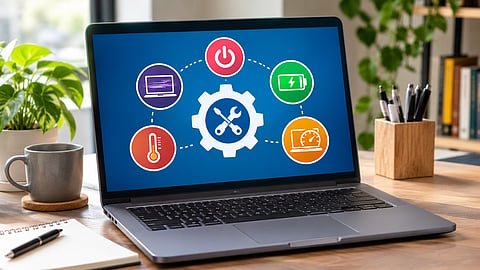

Basic checks can help identify common laptop issues, from power failures to overheating.
Photo Credit: AI-Generated

Check the charger, power outlet, battery health and charging port if the laptop won't turn on or charge.
Use Task Manager to identify high CPU, memory and disk usage, disable unnecessary startup apps, and check drivers if the laptop is slow or facing connectivity issues.
Try a power reset, connect an external monitor to check display faults, and keep vents clear to address common startup, screen and overheating problems.
A laptop that suddenly refuses to turn on can be frustrating, especially when you have work to finish or important files stored on it. Sometimes, pressing the power button does nothing. In other cases, the power indicator lights up, but the screen remains black or the laptop gets stuck during startup. Charging problems, battery issues, software glitches and hardware failures can all cause similar symptoms.
However, a laptop that won't turn on does not necessarily have a major hardware problem. A drained battery, faulty power adapter, loose connection or temporary system issue could be responsible. There are a few basic checks you can perform at home before taking the device to a service centre. The same applies to other common problems, such as slow performance, overheating, display issues and connectivity failures.
Here are some common laptop problems, the steps you can try to troubleshoot them and the warning signs that indicate when professional repair may be necessary.
Note: Stop using the laptop if you notice a swollen battery, smoke, a burning smell or liquid damage.
If your laptop does not respond when you press the power button, first check whether it is receiving power. A completely drained battery, faulty charger, damaged charging port or internal hardware issue could prevent it from starting.
Here are a few things you can check:
Check the power outlet: Connect another device to the same socket to confirm that it is working. You can also try a different wall outlet.
Inspect the charger: Check the power adapter and cable for visible damage, loose connections or unusual heat. If possible, try a compatible charger that meets the laptop manufacturer's power requirements.
Leave it connected to power: If the battery is completely drained, leave the laptop plugged in for around 20 to 30 minutes before trying to switch it on.
Disconnect external devices: Remove USB drives, external monitors, docks and other connected accessories, then try powering on the laptop again.
Try a power reset: Disconnect the charger and hold the power button for around 15 to 30 seconds. Reconnect the charger and try turning it on. The exact procedure varies by manufacturer, so check the laptop's support documentation before attempting a model-specific reset.
It is also worth checking whether the laptop is actually starting but failing to display anything. Look for power indicator lights, keyboard backlighting, fan noise or startup sounds. If these are present but the screen remains black, the problem may be related to the display rather than the power supply.
You can connect the laptop to an external monitor or TV using a compatible cable. If the external display works, the internal screen or its connection may need attention.
This is not an uncommon problem. In one Reddit discussion, a user reported that the power button remained lit, but the laptop showed no display or fan activity. The device eventually started working after its battery drained completely. While this was the outcome in that particular case, waiting for the battery to drain is not a recommended first step. Try a manufacturer-approved power reset instead.
When to visit a service centre: If the laptop shows no signs of power after checking the charger and outlet, or if the charging port feels loose, the device has suffered physical damage or you notice a burning smell, stop troubleshooting and get it checked.
A laptop that remains at the same battery percentage while plugged in, charges intermittently or loses power unusually quickly may have a charger, battery or charging-port problem. Battery capacity also reduces with age and repeated charging cycles.
Before arranging a battery replacement, try these checks:
Check the charging connection: Make sure the adapter is firmly connected to the wall outlet and laptop. If your laptop charges through USB Type-C, use a compatible charger and port that support the required power delivery.
Inspect the charging cable and port: Look for damaged cables, bent connectors, dust or a loose charging connection. Do not insert metal objects into the port.
Try another compatible charger: If possible, test with a known-working adapter that meets the laptop's voltage and wattage requirements. Avoid using an underpowered charger.
Check battery usage: On Windows, open Settings, go to System and then Power and battery. Review battery usage to identify applications consuming more power than expected.
Generate a battery report: Open Command Prompt and enter powercfg /batteryreport. Windows generates a report showing the battery's design capacity and current full-charge capacity, along with usage information. A large difference between the two can indicate battery wear.
Check charging limits: Some laptop manufacturers include battery conservation settings that limit charging to around 60 or 80% to help preserve battery health. Check the manufacturer's power management application before assuming the battery is faulty.
Facing a similar situation, a user on r/techsupport reported that an older HP Pavilion remained plugged in but its battery percentage fluctuated between 1 and 4%. Trying another charger did not resolve the issue. The battery or internal charging system may also be involved, so a charging problem should not automatically be blamed on the adapter.
When to visit a service centre: If the battery percentage continues dropping while connected to a compatible charger, the laptop shuts down unexpectedly or the battery does not hold charge, get the battery and charging system checked. If the battery or laptop body appears swollen, stop using and charging the device. Do not press, puncture or attempt to remove a swollen battery yourself.
A laptop can become slow because of too many background applications, insufficient storage, high memory usage, outdated software or a failing storage drive. Before considering a hardware upgrade, check what is consuming system resources.
Try these steps:
Restart the laptop: This can clear temporary system issues and close processes that have stopped responding.
Check Task Manager: Press Ctrl + Shift + Esc to open Task Manager. Check the CPU, Memory and Disk columns to see which applications are using the most resources.
Disable unnecessary startup applications: In Task Manager, open Startup apps and disable programs that you do not need to launch automatically. Avoid disabling security software or unfamiliar Windows processes.
Free up storage: Open Settings, go to System and Storage, and check how much space is available. Remove unnecessary downloads and temporary files after reviewing them.
Update Windows and applications: Install pending updates and check whether the applications causing the slowdown have newer versions.
Check for malware: Run a scan using Windows Security or another trusted security application.
Check for overheating: If the laptop becomes slow during demanding tasks and its fans run continuously, heat may be affecting performance.
According to a user on Reddit, their ASUS Zenbook 14, powered by an 11th-gen Intel Core i7 and 16GB RAM, was lagging even with just two or three Chrome tabs open. Task Manager showed 62% memory usage with all browser tabs closed, while CPU usage fluctuated between 7% and 50%. Several replies pointed to unnecessary startup apps and pre-installed software, including McAfee and Avast, as possible causes. Others suggested checking CPU and disk usage in Task Manager rather than focusing only on RAM. One user also explained that Windows 11 uses available memory for background tasks, so high RAM usage alone does not necessarily indicate a problem.
When to visit a service centre: If the laptop regularly freezes, displays disk errors, makes unusual clicking or grinding sounds, or remains slow after software checks, it may have a storage or memory problem. Back up important files before running advanced repair tools or considering a Windows reset.
Laptop fans speed up when the processor and graphics hardware are under load. This is normal during gaming, video editing, software updates or other demanding tasks. However, a fan that remains unusually loud during light use, makes grinding noises or accompanies frequent shutdowns may indicate a cooling problem.
Here are a few things you can try:
Keep the air vents clear: Use the laptop on a hard, flat surface. Avoid placing it on a bed, cushion or blanket, as these can block the air intake and exhaust vents.
Check background activity: Open Task Manager and see whether an application is using unusually high CPU resources. Close unnecessary applications.
Clean the exterior vents: Remove visible dust around the vents using a soft, dry cloth. Do not insert objects into the vents or attempt to open the laptop unless you are qualified to do so.
Check the power mode: If your laptop has performance or thermal settings, try a balanced mode instead of a high-performance setting for everyday work.
Install updates: Check for relevant Windows, driver and manufacturer updates. Use the laptop manufacturer's official support application for model-specific updates.
A Lenovo IdeaPad 3 user on r/techsupport reported that the fan kept running and made grinding noises, even after repeated restarts. Closing unnecessary applications did not resolve the problem. Persistent mechanical noises may indicate a fan issue rather than normal fan activity.
When to visit a service centre: Get the laptop checked if the fan makes grinding or rattling noises, does not spin when required, or the device overheats and shuts down repeatedly. A technician may need to inspect the fan and cooling assembly.
Display problems can be caused by incorrect settings, graphics drivers, loose connections or a damaged screen. The first step is to check whether the laptop itself is running or whether the display has stopped working.
You can try the following checks:
Adjust screen brightness: Use the keyboard brightness controls to make sure the display has not been dimmed completely.
Restart the graphics driver: On Windows, press Windows + Ctrl + Shift + B. This refreshes the graphics driver and may resolve a temporary display issue.
Check the display output: Press Windows + P and select the PC screen only option to make sure Windows is not sending the display output to another monitor.
Connect an external monitor: If the external display works normally, the issue may be related to the laptop's screen or display cable.
Update or roll back graphics drivers: If flickering started after a driver update, check Device Manager for an available rollback option. Otherwise, install the latest compatible driver from the laptop manufacturer's website.
Check whether the problem appears during startup: If lines or flickering appear even before Windows loads, the issue may be hardware-related rather than a Windows setting.
As per a Reddit post, a user reported persistent horizontal lines and screen flickering even after trying different graphics drivers and another operating system. The laptop worked normally when connected to an external monitor, suggesting a possible issue with its internal screen or display connection.
When to visit a service centre: Persistent lines, colour distortion, flickering that does not go away after driver checks, a cracked screen or display problems that appear before Windows starts may require hardware diagnosis. Avoid pressing the screen or attempting to adjust its internal cable yourself.
Connectivity problems can make a laptop difficult to use, particularly when Wi-Fi keeps disconnecting, Bluetooth devices disappear or USB accessories are not detected. These issues can be caused by temporary software glitches, incorrect settings, outdated drivers or faulty ports.
Before assuming that a wireless card or USB port has failed, try these steps:
Restart the laptop and router: If Wi-Fi is the problem, restart both devices and check whether other devices can connect to the same network.
Check Airplane mode: Make sure Airplane mode is switched off and Wi-Fi is enabled in Windows settings.
Forget and reconnect to Wi-Fi: Open Settings, go to Network and Internet, select Wi-Fi and remove the affected network. Connect again using the password.
Reconnect Bluetooth devices: Turn Bluetooth off and on, remove the affected accessory from the paired devices list and pair it again.
Check Device Manager: Open Device Manager and look under Network adapters, Bluetooth or Universal Serial Bus controllers. A warning symbol may indicate a driver or device issue.
Test USB accessories: Try another USB port and, if possible, another accessory. This helps establish whether the issue is with the device or the laptop port.
Update drivers: Download compatible Wi-Fi, Bluetooth and chipset drivers from the laptop manufacturer's official support page.
An ASUS TUF A15 user shared on r/techsupport that the laptop's Wi-Fi and Bluetooth connections would randomly disappear. Restarting the device brought them back temporarily, but the issue kept recurring. Other users suggested checking the wireless drivers and network card, as the problem could be more than a temporary software glitch.
When to visit a service centre: If the same ports or wireless connections repeatedly stop working despite driver updates and basic checks, the network card, USB port or motherboard connection may need inspection.
When an inbuilt keyboard, touchpad, speaker or webcam stops working, the problem may be related to a disabled setting, driver conflict, application permissions or hardware damage. Check whether the issue occurs across Windows or only in a particular application.
Try these checks:
Restart the laptop: This can resolve temporary input or driver issues.
Check keyboard shortcuts: Some laptops have function-key combinations that disable the touchpad, microphone, webcam or wireless connections. Check the keyboard icons and manufacturer's manual.
Test an external keyboard or mouse: If an external accessory works, the issue may be limited to the inbuilt input device.
Check Device Manager: Look under Keyboards, Mice and other pointing devices, Cameras and Sound, video and game controllers for disabled devices or driver warnings.
Check application permissions: If the webcam or microphone does not work in a video-calling application, open Windows Settings and review Privacy and security permissions for the camera and microphone.
Check sound output: Open Settings, go to System and Sound, and confirm that the correct output device is selected and the volume is not muted.
Update or reinstall drivers: Use the manufacturer's support application or official website to install the correct drivers.
If a keyboard stops responding only in one application, check that application's settings and shortcuts first. Similarly, a webcam that works in one application but not another may have a permissions or software issue.
When to visit a service centre: If several keys stop working, the touchpad remains unresponsive after driver checks, or the webcam and speakers are not detected by Windows, the hardware may need inspection. If liquid spills on the laptop, switch it off, disconnect the charger and seek professional help rather than testing the affected components.
Failed Windows updates and applications that repeatedly close or stop responding can be caused by insufficient storage, incompatible drivers, corrupted system files or software conflicts. If the issue started immediately after an update or application installation, that timing can help identify the cause.
Here are a few checks you can perform:
Restart and try again: Restart Windows and check whether the update installs successfully.
Check available storage: Make sure the system drive has enough free space for the update.
Run Windows Update troubleshooter: Open Settings, go to System, Troubleshoot and Other troubleshooters, then run the Windows Update troubleshooter if available.
Update the affected application: Install the latest version from the official developer or Microsoft Store.
Repair or reset the application: Open Settings, go to Apps and Installed apps, select the affected application and check whether Advanced options offers a Repair or Reset option. Resetting an application may remove its local settings or data.
Check for driver conflicts: If crashes began after installing a driver or Windows update, check Device Manager and consider rolling back the relevant driver if the option is available.
Use Windows Security: Run a scan if applications are behaving unexpectedly or the system shows other signs of malware.
If Windows repeatedly restarts or displays a blue screen with a stop code, note down the error message. Microsoft recommends checking recently added hardware, using Safe Mode and reviewing Device Manager when troubleshooting unexpected restarts and stop-code errors.
When to visit a service centre: If Windows repeatedly fails to boot, applications crash alongside frequent system errors, or diagnostics report storage or memory faults, get the laptop checked. Back up important files before attempting a reset or reinstalling Windows.
Some problems need professional attention, and continuing to use the laptop can make the damage worse. Stop using it and seek help if you notice:
A swollen battery, raised touchpad or bulging laptop body.
A burning smell, smoke or unusual chemical smell.
The laptop becomes too hot to touch or shuts down repeatedly because of overheating.
Liquid has spilled on the keyboard or entered the laptop.
The charging port, power connector or display has visible physical damage.
The fan makes persistent grinding or rattling noises.
The laptop repeatedly fails hardware diagnostics or displays the same error codes.
The screen shows persistent lines or distortion even before Windows starts.
Do not open the laptop, disconnect its internal battery, replace thermal paste or attempt motherboard-level repairs unless you have the required experience. If the device is under warranty, contact the manufacturer before taking it to an unauthorised repair shop.
Before handing over the laptop, note down when the problem started, what you were doing at the time and which troubleshooting steps you have already tried. This can help the technician narrow down the issue.
Back up important files if the laptop still works. Keep your charger and relevant warranty or purchase details ready. If the laptop cannot start, tell the service centre whether you noticed any power lights, fan activity, beeps or error messages.
Why won't my laptop turn on even when plugged in?
A drained battery, faulty charger, damaged charging port or internal hardware issue could prevent a laptop from turning on. Check the power outlet and charger, leave the laptop connected to power for 20 to 30 minutes and try a power reset. If it still doesn't respond, get it checked by a technician.
Why is my laptop running slow or freezing frequently?
A laptop may slow down because of too many background applications, high memory or CPU usage, insufficient storage, outdated software or malware. Open Task Manager to identify which processes are using system resources. Disabling unnecessary startup apps and freeing up storage may also help.
Why does my laptop overheat and make loud fan noises?
Blocked air vents, dust buildup and applications using high CPU resources can cause a laptop to overheat. Use it on a hard, flat surface, keep the vents clear and check background activity in Task Manager. Persistent grinding or rattling noises may indicate a fan problem.
What should I do if my laptop screen flickers or displays horizontal lines?
Start by restarting the graphics driver using Windows + Ctrl + Shift + B. You can also connect the laptop to an external monitor to check whether the problem is limited to its internal display. If the lines or flickering continue, the screen or its connection may need professional inspection.
When should I take my laptop to a service centre?
Visit a service centre if basic troubleshooting does not resolve the problem, the laptop repeatedly shuts down, hardware components stop working or display issues persist. Stop using the device immediately if you notice a swollen battery, smoke, a burning smell or liquid damage.
Disclaimer: These steps are for basic troubleshooting and may vary by laptop model. Avoid DIY hardware repairs, especially under warranty. For persistent issues, physical damage or battery problems, contact the manufacturer or an authorised service centre.
At marvelof.com, we spotlight the latest trends and products to keep you informed and inspired. Our coverage is editorial, not an endorsement to purchase. If you choose to shop through links in this article, whether on Amazon, Flipkart, or Myntra, marvelof.com may earn a small commission at no extra cost to you.