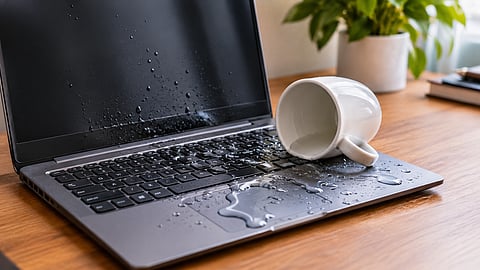

Water spilled across a laptop keyboard and trackpad, highlighting the risk of liquid damage.
Photo Credit: AI-Generated

Switch off the laptop, unplug everything connected to it and wipe away any visible water.
Don't use a hair dryer, put the laptop in rice or turn it back on to see if it still works.
Even if the laptop seems fine after drying, get it checked. Also, check whether your warranty or ADP plan covers accidental damage.
Spilling water on a laptop can be worrying, particularly if the device is switched on and you are in the middle of some work. Even a small amount can enter through the keyboard, trackpad, ports or other openings and reach the components inside. What happens next depends on how much has entered, where it has reached and whether the laptop was connected to a power source at the time.
The immediate concern is the possibility of an electrical short circuit. Moisture can create an unintended path between electrical contacts, disrupting the flow of current and potentially damaging components. The problem may not end once the visible water has dried. Minerals and other substances left behind can affect electrical connections and contribute to corrosion.
If you've spilled water on your laptop, the first priority is to cut off the power. Here's what you should do, what you should avoid and what to know about the damage that can follow.
1. Switch Off the Laptop Immediately
If the laptop is still running, switch it off straight away. Don't spend time saving your work or closing applications. If it isn't responding, press and hold the power button until it shuts down.
The reason for acting quickly is that water and other liquids can conduct electricity. If moisture connects two points on a circuit board that should not be connected, it can cause a short circuit. Current passing through the affected area can damage components, sometimes permanently.
Lenovo recommends disconnecting the power adapter and switching off the computer immediately. It also warns that leaving the laptop running could make it unusable. The same basic precaution applies to other laptops.
2. Disconnect the Charger and Other Accessories
Once the laptop is off, unplug the charger and remove anything connected to it. This includes USB drives, external keyboards, mice, monitors and docking stations. Disconnecting these accessories removes other connections through which power may be supplied or transferred.
If the charger or power adapter has also come into contact with water, avoid handling wet electrical connections. Disconnect the power at the wall only if it is safe to do so. If there is any risk of electric shock, keep away and seek help.
Some older laptops have removable batteries. If yours does, and you can remove it without opening the laptop, take it out after disconnecting the charger. Do not try to remove an inbuilt battery yourself unless you have the necessary experience and the manufacturer's instructions allow it.
3. Blot Away the Liquid You Can See
Use a clean, soft and absorbent cloth to gently blot the keyboard, palm rest, trackpad and other wet surfaces. Avoid rubbing the moisture across the laptop or pressing hard around the keys, as this could push more of it through the gaps.
Pay attention to the areas around the keyboard, hinges and ports, where water may collect. However, don't put tissues, cotton buds or other objects into the USB ports, vents or openings. These can push moisture further inside or leave fibres behind.
Wiping the exterior only removes the water you can reach. It does not mean that the keyboard layers, connectors or components underneath are dry.
4. Check Before Turning the Laptop Upside Down
You may have come across advice suggesting that you should turn a wet laptop upside down or place it in an inverted V position to drain the water. However, this isn't necessarily the right approach for every laptop.
Lenovo's instructions for the IdeaPad Slim 5 specifically warn against turning the computer over to drain liquid. Some models have drainage holes beneath the keyboard, through which water is designed to escape. Changing the laptop's position without checking its design could therefore be counterproductive.
5. Arrange an Internal Inspection if Liquid Has Entered the Laptop
If water has reached the keyboard, ports or openings in the chassis, blotting the exterior is unlikely to be enough. It can collect beneath the keyboard or reach the motherboard, connectors and other internal components.
A technician can open the laptop, disconnect the battery, inspect the affected areas and check for moisture, deposits or corrosion. Depending on the damage, the device may need internal cleaning or replacement components.
1. Do Not Switch It On to Check Whether It Works
It might be tempting to turn the laptop back on to see if everything is working, particularly if the spill wasn't very large. Avoid doing this.
The visible water may have disappeared, but moisture could still be trapped beneath the keyboard or around the internal components. Switching on the laptop allows current to pass through those areas again, increasing the risk of a short circuit.
A laptop starting normally after a spill does not necessarily mean that it has escaped damage. The keyboard, charging circuit or other components may develop problems later if deposits or corrosion affect their connections.
2. Do Not Use a Hair Dryer or External Heat Source
Using a hair dryer might seem like a quick way to remove moisture, but applying heat directly to a laptop is not a reliable drying method. Hot air can affect plastic parts, adhesives and other heat-sensitive components. Directing air at the keyboard may also push water further into the device.
Apple advises against using an external heat source or compressed air when dealing with liquid detected around a MacBook's USB-C port. It also warns against inserting objects into the port, as outlined in its liquid-detection instructions. These instructions are specifically for wet ports, but they reinforce why improvised drying methods should be avoided.
3. Do Not Put Your Laptop in a Bag of Rice
Putting a wet electronic device in rice is an old home remedy, but it will not clean a water-damaged laptop. Rice cannot reach moisture trapped beneath the keyboard or remove deposits left on the internal components.
Apple also advises against putting a Mac in a bag of rice because small particles can enter the device and cause damage. Leaving a device in a dry area with some airflow is part of its guidance for a wet USB-C port. However, this is not a substitute for internal inspection when water has entered the laptop.
4. Do Not Shake the Laptop or Keep Pressing the Keys
Shaking the laptop to get the water out can move it towards other components. Similarly, repeatedly pressing the keys to check whether they are working can force moisture further into the keyboard.
Once you have switched it off and removed the visible water, avoid unnecessary handling. The aim is to prevent the spill from spreading while you arrange the next steps.
5. Do Not Open the Laptop Unless You Know What You Are Doing
Opening the laptop to dry the internal components might sound like a good idea, but it isn't something everyone should attempt. Modern laptops have tightly packed components, delicate ribbon cables and, in many cases, inbuilt batteries.
Removing the bottom panel without the right tools or experience can damage connectors, cables or the casing. More importantly, working around a battery that has been exposed to water requires care. Leave internal cleaning and inspection to a qualified technician if you are not familiar with laptop repairs.
Yes. The type of liquid can affect the extent of the damage because different liquids leave behind different substances when they evaporate.
Water: Even plain water can cause a short circuit if it reaches powered components. Tap water can also contain dissolved minerals that remain on internal surfaces after the moisture evaporates. These deposits can affect electrical contacts.
Tea and coffee: Tea and coffee can leave deposits on the keyboard and internal components. If they contain sugar or milk, the residue can become sticky as it dries. This may cause keys to stick or stop responding, while liquid that reaches the circuit board can affect electrical connections.
Soft drinks and fruit juices: These can be particularly troublesome because they contain sugar, acids and other dissolved substances. The spill may leave sticky deposits, while its chemical composition can contribute to corrosion when it comes into contact with internal components.
Alcoholic drinks: Beer, wine and other alcoholic beverages contain more than alcohol. They can also contain water, sugars, acids and other ingredients that leave residue. Their alcohol content does not make them safe for electronic components.
The amount spilled and the area it reaches also matter. A few drops on the palm rest may not reach the internal components, while a larger spill over the keyboard has a greater chance of entering the chassis. However, there is no reliable way to judge the extent of internal damage just by looking at the amount of water on the surface.
Water may evaporate, but minerals, sugar and other substances left behind can remain on the keyboard, connectors and circuit board. These deposits can interfere with electrical contacts and contribute to corrosion. As a result, a laptop may appear to work normally after a spill but develop problems later, such as unresponsive keys, charging issues or unexpected shutdowns.
As mentioned above, the damage isn't always immediately obvious. Some laptop owners have reported that their devices continued working after a spill, only for keyboard problems or other faults to appear later.
A user on Reddit mentioned that their laptop developed keyboard problems after a water spill. The user said the laptop continued working after being left to dry for a day, but several keys were still not responding properly.
Separately, in a Tom's Hardware forum discussion, a laptop user described spilling a small amount of water on the keyboard. The laptop was switched off immediately and left to dry for two days. It started normally afterwards, but several keys still didn't work. The discussion eventually pointed towards a possible keyboard replacement.
Another user described spilling water near the laptop's speakers. Although the device was switched off and the visible water was wiped away, the keyboard started behaving unusually a couple of hours later. Some keys stopped responding, while others registered incorrect characters. This shows that drying the exterior doesn't necessarily resolve problems caused by water entering the device.
These are individual experiences, but they show that the effects of a spill can vary. A laptop may continue working while certain components have already been affected.
There isn't a fixed waiting period after which every laptop is safe to switch on. It depends on how much water entered the device, where it reached and the type of liquid involved.
Leaving a laptop switched off for 24 or 48 hours does not guarantee that all the moisture has evaporated. Water can remain trapped beneath the keyboard or around connectors, where it may take longer to dry. Even after it evaporates, residue can remain on the internal components.
Apple recommends waiting at least a day before checking whether a wet USB-C port has dried. If the liquid-detection alert appears again, it advises switching the Mac off and leaving it in a dry area with some airflow for another day. However, this guidance applies specifically to liquid detected around the USB-C port. It should not be treated as a general 24-hour drying recommendation for a laptop that has had water spilled across its keyboard or inside its chassis.
If water has entered the laptop, don't rely on a fixed waiting period to decide when to restart it. Have the device inspected and follow the manufacturer's instructions for your particular model.
If water has entered the laptop, get it inspected even if it appears to be working. Look out for these signs of damage:
The laptop switches off unexpectedly or refuses to start.
The keyboard or trackpad stops responding.
The display flickers, shows unusual lines or remains blank.
The charging port or USB ports stop working.
The laptop heats up unusually or makes strange noises.
You notice a burning smell, smoke or hissing.
Don't try to restart the laptop repeatedly if you notice these problems. If the battery appears swollen or the device emits smoke or hissing sounds, keep away and seek professional assistance.
When contacting the service centre, explain what was spilled, how much, where it landed and whether the laptop was switched on.
A laptop that has suffered water damage isn't necessarily beyond repair. The outcome depends on how much liquid entered the device and which components were affected.
If the damage is limited to the keyboard, replacing the keyboard assembly may be sufficient. If liquid has reached the motherboard, a technician may need to clean the affected areas and identify damaged components. In more serious cases, the motherboard or other parts may need replacement, which can make the repair expensive.
Standard manufacturer warranties generally cover defects in materials or workmanship, not accidental damage caused by liquid spills. An extended warranty generally continues the standard warranty coverage for a longer period but does not automatically include accidental damage. For spills, drops and other accidents, you may need a separate Accidental Damage Protection (ADP) plan.
For example, Apple's standard warranty excludes accidental damage, while eligible AppleCare plans may offer accidental damage protection subject to their terms and service fees. Windows laptop brands also offer separate protection plans.
It is advisd to check your laptop's warranty and ADP coverage before approving a repair. Coverage, exclusions and service charges vary by manufacturer and plan.
What should you do immediately after spilling water on a laptop?
Switch off the laptop, disconnect the charger and other accessories, and gently blot the visible water with a clean, absorbent cloth. Keep it switched off and arrange an internal inspection if water has entered the device.
Can a laptop work normally after water damage?
Yes, a laptop may continue working after a spill, but that doesn't mean it is undamaged. Problems such as unresponsive keys, charging issues or unexpected shutdowns may appear later.
How long should you leave a laptop to dry after a water spill?
There is no fixed waiting period that guarantees a laptop is safe to switch on. Water can remain trapped beneath the keyboard or around internal components. Get the laptop inspected if moisture has entered the device rather than relying on a 24- or 48-hour drying period.
Can a water-damaged laptop be repaired?
Yes, many water-damaged laptops can be repaired. Depending on the extent of the damage, repairs may involve internal cleaning, keyboard replacement or replacing damaged motherboard components.
Does a laptop's extended warranty cover water damage?
Not necessarily. A standard or extended warranty generally does not cover accidental liquid damage. You may need a separate Accidental Damage Protection (ADP) plan, depending on the manufacturer's coverage terms.
Disclaimer: This article is for general guidance. Damage and repair requirements vary by laptop model and spill. Follow the manufacturer's instructions and consult a qualified technician. Warranty and ADP coverage depend on the applicable terms and conditions.
At marvelof.com, we spotlight the latest trends and products to keep you informed and inspired. Our coverage is editorial, not an endorsement to purchase. If you choose to shop through links in this article, whether on Amazon, Flipkart, or Myntra, marvelof.com may earn a small commission at no extra cost to you.