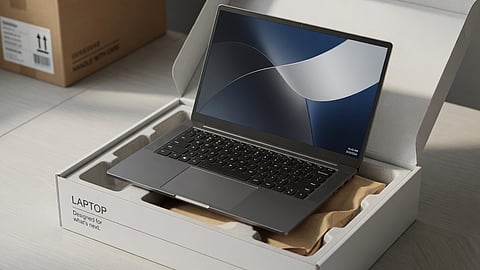

A newly unboxed laptop ready for its initial setup before installing apps and personalising settings.
Photo Credit: AI-generated

Follow 11 essential setup steps to improve your new laptop's performance, security, and overall user experience.
Learn how to update Windows, remove bloatware, configure privacy settings, and back up important files.
Optimise your laptop from day one with simple settings that help it run faster, safer, and more efficiently.
Just got your new laptop and eager to start using it right away? Wait. Before you start signing in to your accounts or downloading applications, you should first consider setting it up properly, as it can improve performance, enhance security, and help you get the best experience.
Whether it's a Windows laptop or a MacBook, a few simple steps such as installing the latest updates, removing unnecessary software, and configuring essential settings are a must. To help you with that, we have put together a simple checklist covering 11 important things you should do immediately after unboxing your new device.
A new laptop may be ready to use out of the box, but it is not always optimised for the best experience. Completing a few essential setup tasks can improve performance, enhance security, protect your data, and help your device run more efficiently. It also ensures your laptop is ready for everyday use from the very beginning.
As soon as a user receives their new laptop, they should install all the latest updates, which also include Windows updates and driver updates. Notably, new laptops often come with older software. Therefore, updating everything right at the beginning will help fix bugs, improve overall performance, and make the device more secure.
Here's how to do it:
Go to Settings, then Windows Update, and click Check for updates.
Install all available updates (this may take some time and require a few restarts).
Also, update graphics drivers if the laptop is used for gaming.
New laptops generally come with several unwanted applications and trial software installed by the manufacturer, which take up space and can slow down the laptop. Removing unwanted applications will enhance the overall performance of the device.
Here's how to do it:
Go to Settings, then Apps, and then Installed apps.
Look for apps that users do not need.
Select the app and click Uninstall.
Repeat this process for all unwanted software.
In order to secure your device against unauthorised access and protect personal data, users should set up a PIN or password as soon as possible. If supported, they can also enable fingerprint recognition or facial authentication for added convenience and security.
Here's how to do it:
Go to Settings, then Accounts, and then Sign-in options.
Under PIN, click Set up and create a PIN.
If the laptop has a fingerprint sensor or IR camera, users can also set up Windows Hello Face or Fingerprint for faster and more secure sign-in.
Users will find several default power settings on a new laptop that may not be ideal for everyone. They can adjust these settings to get better battery life and performance.
Here's how to do it:
Go to Settings, then System, and then Power & battery.
Under Power mode, users can choose Balanced for daily use or Best performance when plugged in.
Turn on Battery saver when the battery is low.
Users can also click on Screen and sleep to adjust when the screen turns off and when the laptop sleeps.
To keep files safe, users should set up automatic backup using OneDrive. If the laptop gets damaged, lost, or needs to be reset in the future, all important documents, photos, and desktop files will remain safe in the cloud and can be easily restored on a new device.
Here's how to do it:
Sign in with a Microsoft account.
Open OneDrive settings and turn on Folder backup.
Select important folders like Desktop, Documents, and Pictures.
Click Start backup.
The Find My Device feature helps users locate their laptop if it gets lost or stolen. This allows users to track the laptop's location through a Microsoft account from any other device. It is especially useful in case of theft or if the laptop is misplaced.
Here's how to do it:
Go to Settings, then Privacy & security, and then Find my device.
Turn on the toggle for Find my device.
Make sure the laptop is signed in with a Microsoft account.
Users can adjust the display settings on a new laptop to make the screen more comfortable for their eyes. The default settings are often not ideal for long hours of use, so changing the brightness, enabling Night Light, and selecting the right resolution can improve the viewing experience.
Here's how to do it:
Go to Settings, then System, and then Display.
Adjust the Brightness slider according to the room lighting.
Turn on Night Light and set a schedule for the evening.
Select the correct screen resolution for clear display quality.
It is a good idea for users to review and adjust the privacy settings on a new laptop. Many options are enabled by default, and changing them helps users control what information is shared with Microsoft and other applications.
Here's how to do it:
Go to Settings, then Privacy & security.
Review options under Windows permissions, such as Location, Camera, Microphone, and Diagnostics & feedback.
Turn off any permissions that are not required.
Many apps start automatically when the laptop boots up. This can slow down the startup process and use extra resources in the background. Therefore, users must disable programs that are not needed at startup.
Here's how to do it:
Press Ctrl + Shift + Esc to open Task Manager.
Go to the Startup apps tab.
Right-click on unnecessary apps and select Disable.
Keep only important apps like antivirus or cloud storage enabled.
Users should install important applications right after setting up the laptop. This includes a good web browser, along with essential tools like Microsoft Office, a PDF reader, and any other apps they use regularly.
Here's how to do it:
Install a preferred web browser (Google Chrome or Microsoft Edge).
Install Microsoft Office or any alternative office suite.
Add a PDF reader (such as Adobe Acrobat Reader or Microsoft Edge's built-in PDF viewer).
Install any other apps users need for work or daily use.
The hardware components of a new laptop should be tested properly after unboxing. This helps users check if everything is working correctly and catch any defects early, especially during the return period.
Here's how to do it:
Type on the keyboard and check if the touchpad works smoothly.
Play a video or music to test the screen quality and speakers.
Use the webcam and microphone for a quick test.
Check Wi-Fi connectivity by connecting to different networks.
Test the battery backup by using the laptop without the charger for some time.
What should I do first after buying a new laptop?
The first thing you should do is install the latest Windows and driver updates. After that, remove unnecessary pre-installed software, set up a PIN or Windows Hello, configure power and privacy settings, and install the essential apps you need for work, studies, or entertainment.
How do I set up a new Windows laptop for the first time?
To set up a new Windows laptop, update Windows and drivers, uninstall unwanted applications, create a secure PIN, enable Windows Hello (if available), configure power and privacy settings, enable OneDrive backup, and install your preferred apps before you start using the device regularly.
Should I remove pre-installed apps from a new laptop?
Yes. Many new laptops come with pre-installed applications or trial software that you may not need. Removing unnecessary apps can free up storage space, reduce background processes, and help improve your laptop's overall performance.
How can I make my new laptop faster?
You can make your new laptop run faster by installing the latest updates, removing bloatware, disabling unnecessary startup programs, choosing the right power mode, and keeping only the applications you regularly use.
Do I need to update drivers on a brand-new laptop?
Yes. Even brand-new laptops may ship with older drivers. Updating graphics, chipset, Wi-Fi, and other drivers improves system stability, fixes bugs, enhances security, and ensures better compatibility with the latest software and games.
Your laptop is now ready to use. To complete your setup, you can also explore our guide on Best Laptop Bags for Work and Travel, Tech-Enabled Bags, and Laptop Bag Sizes Explained to help protect your device while commuting, travelling, or working on the go.
If you are planning to buy another laptop for gaming, content creation, travel, or everyday use, you can also check out our recommendations for Best 2-in-1 Convertible Laptops, Best Creator Laptops for Video Editing and Design, Best Laptops Under Rs 70,000, Best Travel-Friendly Laptops, and Best Gaming Laptops.
If you are shopping for laptops or accessories, don't forget to explore the latest offers during the HP Limited-Time Offers, and Dell Laptop Deals.
Disclaimer: The setup steps mentioned in this article are general recommendations and may vary depending on your laptop model, operating system, and manufacturer. Some features, such as Windows Hello, OneDrive, and Find My Device, may not be available on all devices or may require a Microsoft account to use.
At marvelof.com, we spotlight the latest trends and products to keep you informed and inspired. Our coverage is editorial, not an endorsement to purchase. If you choose to shop through links in this article, whether on Amazon, Flipkart, or Myntra, marvelof.com may earn a small commission at no extra cost to you.






