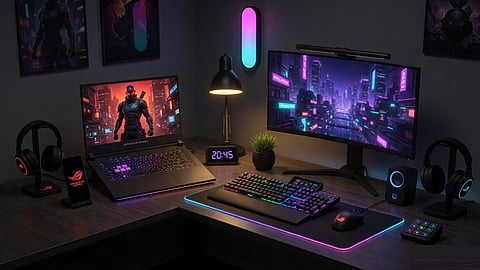

A gaming laptop connected to an external monitor, keyboard, and mouse for a more immersive and comfortable gaming setup.
Photo Credit: AI-generated

Take a look at how to make your gaming laptop run faster and cooler.
Find simple tweaks to improve FPS and overall gaming performance.
Optimise your laptop for smoother and more comfortable gaming sessions.
If you play games on your laptop and it fails to respond properly, then you are not alone. Several users must have faced sudden frame drops in the middle of an intense fight, fans that sound like a jet engine after just an hour of play, or performance that quietly drops the longer you game, but the good news is that these issues can be fixed.
Notably, some simple adjustments like using the right power mode, keeping temperatures in check, updating graphics drivers, and reducing unnecessary background activity can surely make a lot of difference, resulting in better sustained FPS, lower temperatures, quieter fans, and smoother gameplay. Here are some of the tips that you must follow for smooth gaming on your laptop.
Gaming laptops offer high performance, but factors such as heat, background apps, outdated drivers, and incorrect power settings can limit their potential. A few simple optimisations can help improve frame rates, reduce thermal throttling, and make gaming sessions smoother without spending money on new hardware.
It has been observed that gaming laptops slow down when they run on battery. They reduce power to save battery life. Therefore, it is highly advised to plug in your laptop before you start playing games on it. Additionally, you always need to use the charger that came with it, as that would give you full speed and better performance.
It is important to highlight that playing on the highest settings is not always the best idea on a laptop. Users need to lower heavy settings like Shadows, Ray Tracing, and Motion Blur first. These make the biggest difference in performance. They can also turn on DLSS (for NVIDIA) or FSR (for AMD) if their game has it, which makes the game look good while running much more smoothly.
Additionally, users need to set a limit on how many frames per second their game can run (for example, cap it at 60 or 120). This stops their laptop from working harder than needed, keeps temperatures lower, and gives smoother gameplay.
Gaming laptops offer different modes for different settings. The normal mode limits speed to save power and stay quiet. Therefore, users need to switch to Performance or Turbo mode on their devices before starting any game. Furthermore, they also need to set Windows to Best Performance. This lets your laptop run at full speed. Doing this will surely make their laptop run at full speed.
Many laptops use the weaker graphics card for the screen even when gaming, ultimately causing lag. In order to avoid that, users can turn on the MUX switch in their laptop's software (if their model has it) when their laptop is plugged in. This makes the stronger graphics card connect directly to the screen for smoother gameplay.
Notably, old drivers can make games run worse or cause problems. Therefore, users need to update their graphics drivers regularly. If they have NVIDIA, they need to use the NVIDIA App or GeForce Experience, and if AMD, use Radeon Software. Also, keep Windows updated. These updates often include bug fixes, improve compatibility with new games, and help keep the system running smoothly.
Unwanted programs running in the background use the laptop's power while gaming. So, before users start playing, they should close applications that they don't need. Also, turning on Game Mode in Windows settings will help their laptop focus on the game, offering smoother output.
Any device, including laptops, when it gets too hot, automatically slows down to protect itself. That is why keeping the laptop cool is important. Users can play on a hard, flat surface and use a laptop stand or cooling pad. Additionally, they need to clean the vents with compressed air every few months for a faster and quieter gaming experience.
While the built-in laptop display is sufficient for gaming, for a better gaming experience, users can use an external monitor. It would allow a larger viewing area for users. Additionally, pairing it with a keyboard and mouse also makes gaming more comfortable, especially during long sessions.
Does keeping a gaming laptop plugged in improve performance?
Yes. Most gaming laptops reduce CPU and GPU performance when running on battery to extend battery life. Keeping the laptop plugged in while gaming allows it to deliver its full performance.
Does a cooling pad help improve gaming performance?
A cooling pad can help improve airflow and lower temperatures, especially during long gaming sessions. While it may not increase FPS significantly, it can reduce thermal throttling and help maintain consistent performance.
What is a MUX switch, and should I enable it?
A MUX switch allows the dedicated graphics card to connect directly to the laptop display, bypassing the integrated GPU. If your laptop supports it, enabling the MUX switch while plugged in can improve gaming performance in many titles.
How often should I update graphics drivers?
It is recommended to check for graphics driver updates regularly, especially before playing newly released games. Updated drivers often include performance improvements, bug fixes, and better game compatibility.
Can an external monitor improve the gaming experience on a laptop?
Yes. An external monitor provides a larger display and, in many cases, can support higher refresh rates and resolutions. Pairing it with a keyboard and mouse can also make gaming more comfortable during extended sessions.
If you're looking to get more out of your laptop, explore our guides on New Laptop Buying Checklist, Laptop Hacks to Make It Faster, Gaming Laptop Myths, Best 2-in-1 Convertible Laptops, Best Creator Laptops for Video Editing and Design, the Best Laptops Under Rs 70,000, and Best Travel-Friendly Laptops. These guides can help you optimise your current device or choose the right laptop for your needs.
If you're planning to upgrade, don't forget to check out the latest offers during the Flipkart Big Bachat Days Sale and HP Limited-Time Offers to find attractive discounts on laptops and accessories.
At marvelof.com, we spotlight the latest trends and products to keep you informed and inspired. Our coverage is editorial, not an endorsement to purchase. If you choose to shop through links in this article, whether on Amazon, Flipkart, or Myntra, marvelof.com may earn a small commission at no extra cost to you.






